
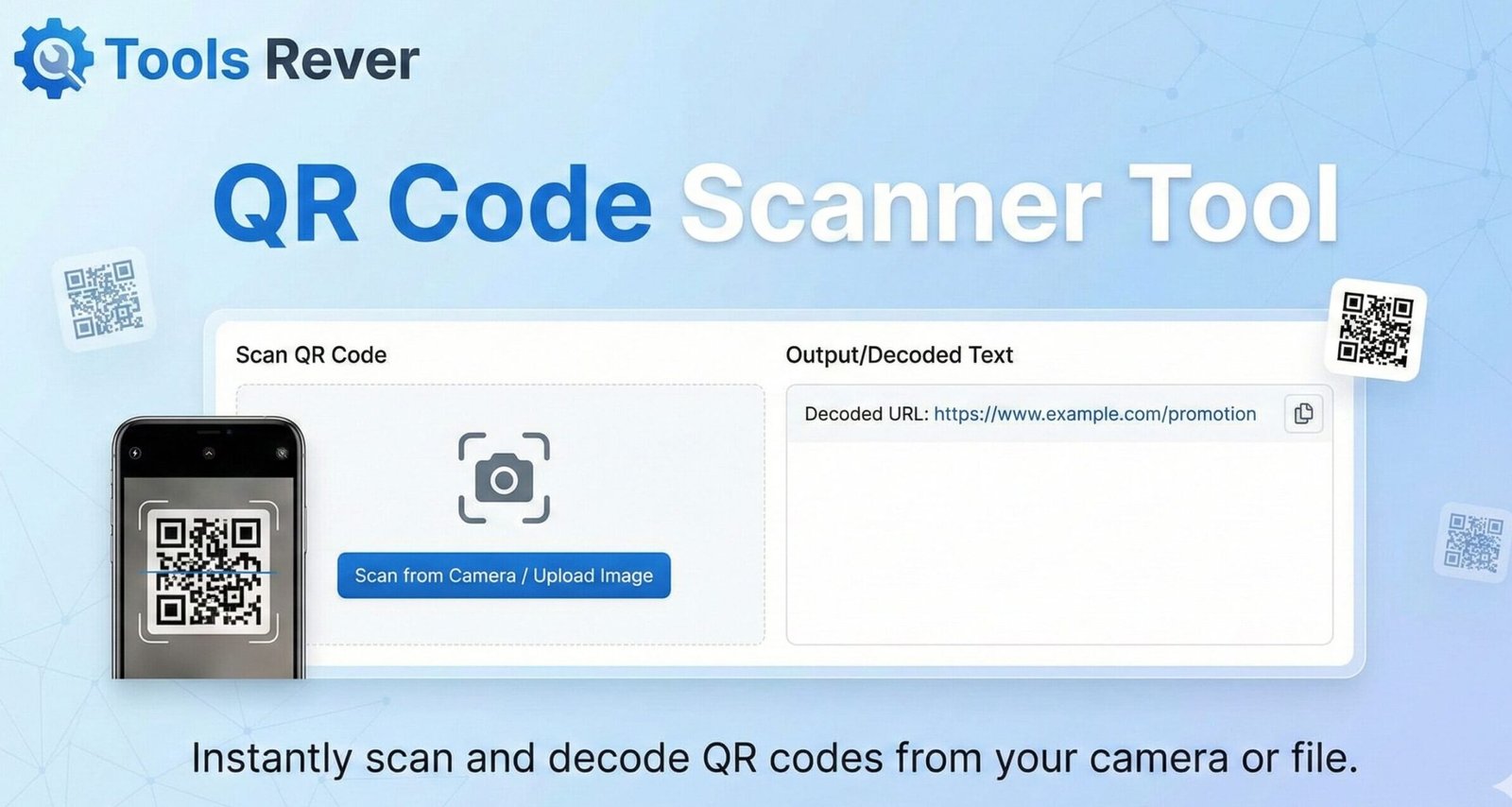
QR Code Scanner
About this tool: Scan QR codes using your device’s camera. This tool can read QR codes containing URLs, text, contact information, Wi-Fi credentials, and more.
How to use:
- Click “Start Camera” to activate your webcam
- Allow camera access when prompted by your browser
- Point your camera at a QR code
- The QR code will be automatically detected and scanned
- Alternatively, you can upload an image containing a QR code
Scan Results
QR Code Scanner Online: Decode Any QR Code Free
Scan QR codes instantly from your computer! Our free online QR Code Scanner reads codes from images or your webcam. No app download required.
QR Code Scanner: Instantly Decode the Digital World Around You
Have you ever encountered a QR code on a document, poster, or screen and been unable to scan it because you didn’t have your phone handy? Or perhaps you’ve received a QR code as an image file and wondered how to access the information it contains without a dedicated app. This common frustration is now a problem of the past.
An online QR Code Scanner is a versatile web-based tool that allows you to decode QR codes directly from your computer’s browser. Using either an uploaded image or your computer’s webcam, this scanner instantly reveals the hidden URL, text, or contact information encoded within the square pattern. It’s the ultimate convenience for professionals and casual users alike, bridging the gap between physical printouts and digital content with a single click.
What is a QR Code Scanner and How Does Scanning Work?
QR Code stands for Quick Response Code. It is a two-dimensional matrix barcode invented in 1994 by the Japanese company Denso Wave. Unlike a traditional barcode that holds information horizontally, a QR code stores data in both vertical and horizontal dimensions, allowing it to hold hundreds of times more information.
A QR code consists of:
- Finder Patterns: The three large squares in the corners that help the scanner detect the code’s orientation.
- Alignment Patterns: Smaller squares that ensure the code can be read even if it’s distorted.
- Timing Patterns: Lines that help the scanner determine the size of the data matrix.
- Data Cells: The black and white modules that actually contain the encoded information.
A QR Code Scanner works by using a computer vision algorithm to:
- Detect the Code: Identify the finder patterns to locate the QR code within an image or video feed.
- Normalize the Image: Correct for perspective, skew, and rotation.
- Decode the Matrix: Read the binary data from the black and white modules.
- Interpret the Data: Convert the binary data into its original format, such as a URL, plain text, or a vCard contact.
Our QR Code Scanner tool performs this complex process seamlessly in your browser, delivering the results in seconds.
Why Use an Online QR Code Scanner? Key Advantages
While smartphone apps are common, a web-based scanner offers unique benefits that make it an essential tool.
Convenience for Desktop Users
Many QR codes are encountered in a desktop environment—on a computer screen within a PDF, on a website, or in a presentation. An online scanner eliminates the awkward process of taking a picture of your screen with your phone.
No App Installation Required
You don’t need to download, install, or update any software. This saves storage space on your device and is perfect for use on public or work computers where you cannot install applications.
Higher Resolution and Accuracy
Desktop webcams and uploaded images often have higher resolution than smartphone cameras. This can lead to more accurate and faster scanning, especially for dense or damaged QR codes.
Batch Processing Capabilities
Some advanced online scanners allow you to upload an image containing multiple QR codes, decoding all of them at once—a feature rarely found in mobile apps.
How to Use Our Free Online QR Code Scanner
Our tool is designed for maximum simplicity. You can scan a QR code in two ways.
Method 1: Upload an Image File
- Locate Your Image: Find the PNG, JPG, or GIF file containing the QR code on your computer.
- Click “Upload Image”: On our QR Code Scanner page, click the upload button and select your file.
- Automatic Scanning: The tool will process the image instantly.
- View Results: The decoded information (a URL, text, etc.) will be displayed prominently. If it’s a URL, it will often be a clickable link.
Method 2: Use Your Webcam
- Grant Permission: Click the “Use Webcam” button and allow the browser to access your camera.
- Position the Code: Hold the physical QR code up to your webcam or point your webcam at the code on a screen.
- Automatic Detection: The tool will continuously analyze the video feed and will automatically lock onto and decode the QR code as soon as it’s in view.
- Get the Result: The decoded content will appear on the screen, and the scanning will stop.
After scanning a QR code that leads to a website, you might want to share a screenshot. For perfect image dimensions, use our Image Resizer tool.
Common Types of Data Stored in QR Code Scanner
QR codes can encode various types of information. Our scanner will correctly identify and format the output for:
- Website URLs: The most common use. Scanning instantly takes you to a webpage.
- Plain Text: Messages, instructions, or simple notes.
- Contact Information (vCard): Creates a contact card on your phone with a name, phone number, email, and address.
- Email Addresses: Pre-fills the “To” field in an email client.
- Phone Numbers: Prepares your phone to dial a specific number.
- SMS Messages: Pre-fills an SMS with a recipient number and message.
- Wi-Fi Login Credentials: Encodes the network name (SSID) and password, allowing devices to connect easily.
- Event Details: Creates a calendar event with date, time, and location.
- Cryptocurrency Addresses: For Bitcoin or other crypto payments.
The Technology Behind QR Codes: A Deeper Dive
The robustness of the QR code system is due to its sophisticated error correction capability. Using the Reed-Solomon error correction algorithm, QR codes can still be read correctly even if up to 30% of the code is damaged, obscured, or dirty.
There are four levels of error correction:
- L (Low): 7% recovery.
- M (Medium): 15% recovery.
- Q (Quartile): 25% recovery.
- H (High): 30% recovery.
This is why you can often scan a QR code even if a part of it is missing or has a logo in the center. The International Organization for Standardization (ISO) has standardized QR codes (ISO/IEC 18004), ensuring global compatibility.
Practical Use Cases for a QR Code Scanner
The applications for QR code scanning are endless and span both personal and professional contexts.
For Business and Marketing
- Digital Business Cards: Quickly add a new contact’s details to your phone by scanning their vCard QR code.
- Product Information: Scan codes on products to access manuals, specifications, or promotional videos.
- Connect to Wi-Fi: Businesses can provide guest Wi-Fi access without publicly displaying the password.
For Personal and Everyday Use
- Menu Scanning: Access digital menus at restaurants.
- Payment Processing: Scan to pay via apps like PayPal or Venmo.
- App Downloads: Quickly get directed to the correct app store page.
- Authentication: Set up two-factor authentication (2FA) for online accounts.
For Logistics and Inventory
- Package Tracking: Scan codes on shipping labels to track parcels.
- Asset Management: Track company equipment and inventory.
Security Best Practices When Scanning QR Codes
While incredibly useful, QR codes can be used maliciously—a practice known as “quishing” (QR code phishing). Follow these safety tips:
- Preview the URL: A good online scanner, like ours, will show you the full URL before you click. Check if the domain looks legitimate and uses HTTPS.
- Be Wary of Unsolicited Codes: Do not scan codes from untrusted sources, especially those received via email or found in public places promising prizes.
- Use a Scanner with a Preview: Our tool provides a preview, which is your best defense. A malicious app might automatically and silently redirect you to a phishing site.
- Keep Your Software Updated: Ensure your browser and antivirus software are up-to-date for an added layer of protection.
Frequently Asked Questions (FAQs)
Why isn’t the scanner reading my QR code?
Can I scan a QR code from a screenshot on my phone?
Is it safe to use an online QR code scanner?
Conclusion: Unlock Instant Information with a Click
A QR Code Scanner is more than just a digital convenience; it is a key that unlocks a seamless bridge between the physical and digital worlds. Whether you’re a professional streamlining workflows, a consumer accessing information, or a curious individual exploring the technology, an online scanner provides the flexibility and power you need without the hassle of additional apps. It embodies efficiency, empowering you to access, decode, and act on information faster than ever before.
Stop missing out on the content hidden in plain sight. Ready to decode any QR code with ease? Use our fast, free, and secure QR Code Scanner tool now and experience the ultimate in digital convenience!