
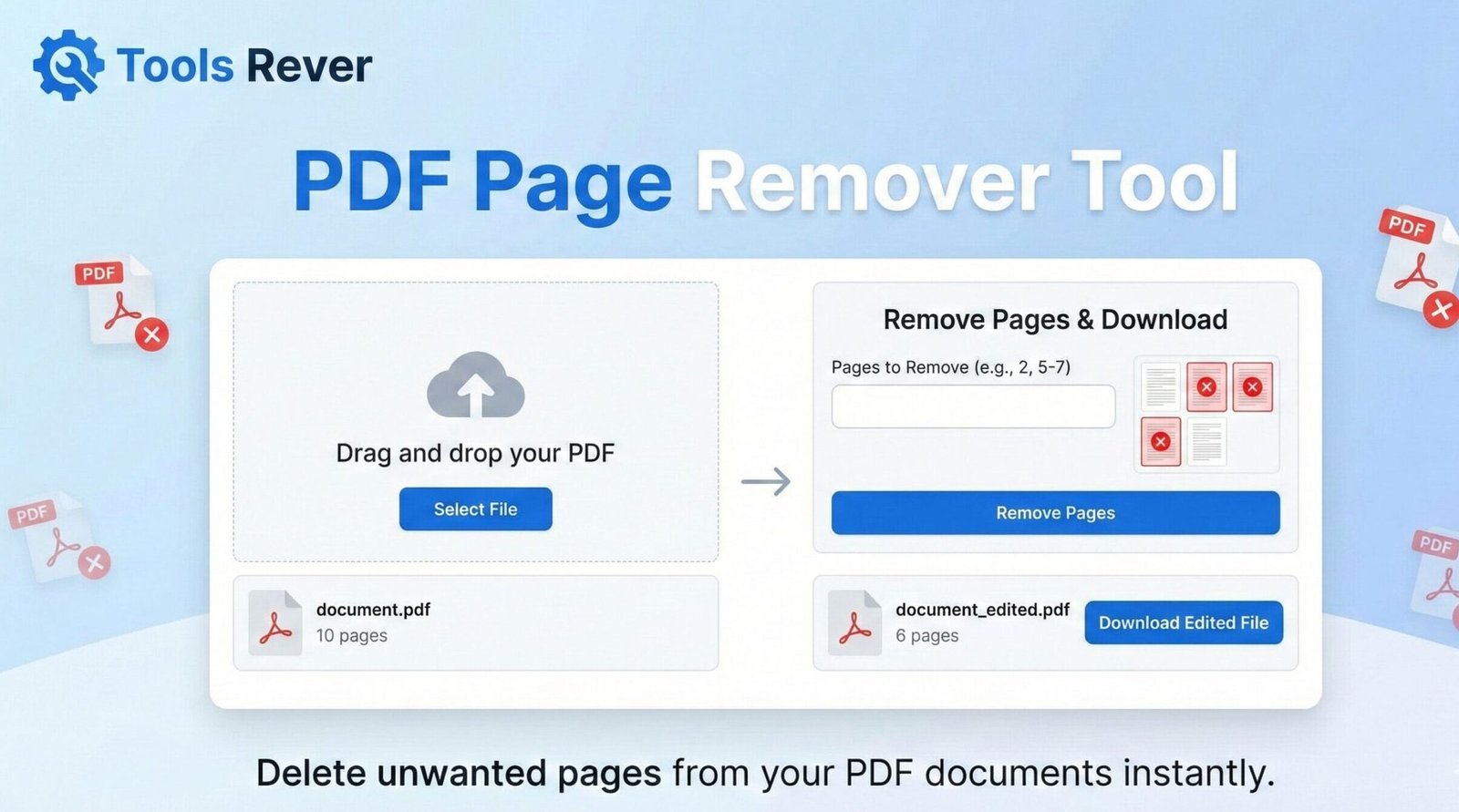
PDF Page Remover
Remove unwanted pages from your PDF documents
About This Tool
The PDF Page Remover allows you to selectively remove pages from PDF documents without the need for expensive software. This is perfect for removing blank pages, duplicates, outdated content, or any other pages you don’t need in your final document.
Simply upload your PDF, select the pages you want to remove, and download your new, streamlined document.
Upload Your PDF File
Drag & drop your PDF file here or click to browse
How to Use
Tips for Page Removal
- Removing Blank Pages: Look for completely white pages in the thumbnail view.
- Multiple Selection: Hold Ctrl (or Cmd) while clicking to select multiple individual pages.
- Sequential Selection: Use the range format (e.g., 5-9) to quickly select consecutive pages.
- Double Check: Always verify your selection before removing pages, as this action cannot be undone.
- Final Review: After processing, download and review your document to ensure it meets your expectations.
Remove Pages from PDF Online – Free Tool
Delete unwanted pages from PDF files instantly! Our free online PDF page remover tool lets you extract specific pages and create custom documents. No watermarks.
PDF Page Remover: Create Perfect Documents by Deleting Unwanted Pages Instantly
Have you ever downloaded a massive PDF Page Remover report only to need just a few specific pages? Or received a scanned document that accidentally included blank or confidential pages that shouldn’t be there? Manually dealing with unwanted PDF pages traditionally meant printing, rescanning, or using expensive software.
A PDF Page Remover is the simple, elegant solution to this common digital problem. This online utility allows you to selectively delete any page or range of pages from a PDF document, creating a clean, customized file that contains only the content you need. Whether you’re a student compiling research, a professional preparing a client presentation, or anyone who works with digital documents, this tool empowers you to take full control over your PDF files in seconds.
What is a PDF Page Remover and How Does It Work?
A PDF Page Remover is a specialized web-based tool that processes a Portable Document Format (PDF) file and allows you to delete specific pages before generating a new, modified PDF. It works by deconstructing the original file, removing the selected page data, and then reconstructing a new file without those pages.
The technology behind it involves several key steps:
- File Parsing: The tool analyzes the PDF Page Remover internal structure to identify all pages and their associated content (text, images, vectors).
- Page Selection: You specify which pages to remove, either by individual page numbers or ranges.
- Content Extraction & Reassembly: The tool extracts all content from the pages you want to keep and assembles it into a new, compliant PDF file.
- Output Generation: You receive a completely new PDF Page Remover document that excludes the deleted pages, with all formatting and quality preserved.
Using our PDF Page Remover tool eliminates the need for complex software or tedious workarounds, giving you professional results with just a few clicks.
Why Would You Need to Remove Pages from a PDF?
The ability to selectively remove pages from PDF documents has countless practical applications across various aspects of work and personal life.
For Students and Educators
Academic work often involves working with lengthy documents where only certain sections are relevant.
- Create Study Guides: Extract only the key chapters or practice problems from a textbook PDF.
- Prepare Assignment Submissions: Remove answer keys or instructor notes before submitting homework.
- Compile Research Materials: Select only the relevant research papers or articles from a large collection.
For Business Professionals
Efficiency in business means working with precise, relevant information without distractions.
- Create Client-Focused Documents: Remove internal notes, proprietary information, or terms and conditions before sharing proposals with clients.
- Prepare Presentations: Extract specific charts, graphs, or sections from lengthy reports for inclusion in presentations.
- Document Version Control: Remove outdated pages from manuals, policies, or procedures before distributing updated versions.
For Legal and Administrative Use
Precision and confidentiality are paramount in legal and administrative contexts.
- Redact Sensitive Information: Remove pages containing confidential personal or financial information before document disclosure.
- Create Court Submissions: Select only the relevant exhibits or sections from a large case file.
- Streamline Contracts: Remove boilerplate sections or unused clauses to create cleaner, more focused agreements.
Key Features of an Effective PDF Page Removal Tool
Not all PDF tools are created equal. A high-quality page remover, like the one we provide, offers several essential features that ensure professional results.
Precise Page Selection
The ability to select individual pages, page ranges (e.g., 1-5, 8-10), or a combination of both (e.g., 1, 3, 5-7) gives you complete control over the final document.
Page Preview Capability
Being able to visually preview pages before deletion helps prevent mistakes and ensures you’re removing the correct pages.
Format and Quality Preservation
A superior tool maintains the original formatting, image quality, text clarity, and hyperlinks in the remaining pages of your document.
Batch Processing
The ability to remove pages from multiple PDFs simultaneously can save significant time when working with document collections.
Security and Privacy
A trustworthy tool processes files securely and automatically deletes them from servers after a short period, protecting your confidential information.
Just as our PDF Page Remover helps you refine your documents, our Image Resizer tool helps you perfect visual elements for any project.
Step-by-Step Guide: How to Remove Pages from a PDF
Using our tool is a straightforward process that takes just moments:
Step 1: Upload Your PDF
Navigate to our PDF Page Remover tool and upload your PDF file by dragging and dropping it into the designated area or clicking to browse your computer.
Step 2: Review and Select Pages
The tool will display a thumbnail preview of all pages in your document. Take a moment to verify you have the correct file.
Step 3: Choose Pages to Remove
Select the specific pages you want to delete by:
- Clicking on individual page thumbnails
- Entering page numbers or ranges (e.g., “1, 3, 5-8”)
- Using checkboxes next to each page
Step 4: Confirm and Process
Click the “Remove Pages” or “Create New PDF” button. The tool will process your file, typically taking just seconds depending on file size.
Step 5: Download Your Modified PDF
Once processing is complete, a download link will appear. Click it to save your new, customized PDF to your device.
Understanding PDF Technology: Why Page Removal Isn’t Simple
Many users don’t realize that PDF files are complex containers that can include various types of content. According to the International Organization for Standardization (ISO), which now maintains the PDF standard (ISO 32000), PDFs can contain:
- Text with embedded fonts
- Vector graphics and raster images
- Interactive elements and form fields
- Metadata and document structure information
- Compression and encryption data
This complexity is why simple approaches like taking screenshots of desired pages result in poor quality documents. A proper PDF Page Remover understands this structure and reconstructs a valid PDF file rather than just creating images of the remaining pages.
Common Challenges and Solutions When Removing PDF Pages
While the process is generally straightforward, users sometimes encounter specific situations that require understanding:
Documents with Complex Layouts
PDFs with multiple columns, text boxes, or unusual spacing generally convert well since the tool preserves the original layout of the remaining pages.
Scanned PDF Documents
For PDFs that are essentially images of pages (scanned documents), the page removal process works equally well since it’s operating on the page as a unit rather than text content.
Large File Sizes
Very large PDFs (hundreds of pages or high-resolution images) may take slightly longer to process but will typically complete successfully.
Password-Protected Files
Most online tools cannot process encrypted or password-protected PDFs. You’ll need to remove the password protection first using a separate tool before using the page remover.
Frequently Asked Questions (FAQs)
Is it legal to remove pages from a PDF?
Will removing pages affect the quality of the remaining pages?
Can I use this tool to rearrange pages in a PDF?
Conclusion: Take Control of Your PDF Documents Today
A PDF Page Remover is more than just a convenience—it’s an essential tool for digital document management in our information-rich world. By allowing you to surgically remove unwanted content while preserving the quality and formatting of what remains, this utility transforms static PDFs into dynamic, customizable resources. The ability to quickly create focused, relevant documents from larger files saves time, reduces digital clutter, and enhances productivity across countless scenarios.
Stop struggling with cumbersome workarounds or distributing documents filled with irrelevant content. Ready to create the perfect PDF? Use our free, secure PDF Page Remover tool now and transform your multi-page documents into precisely what you need in just seconds!