
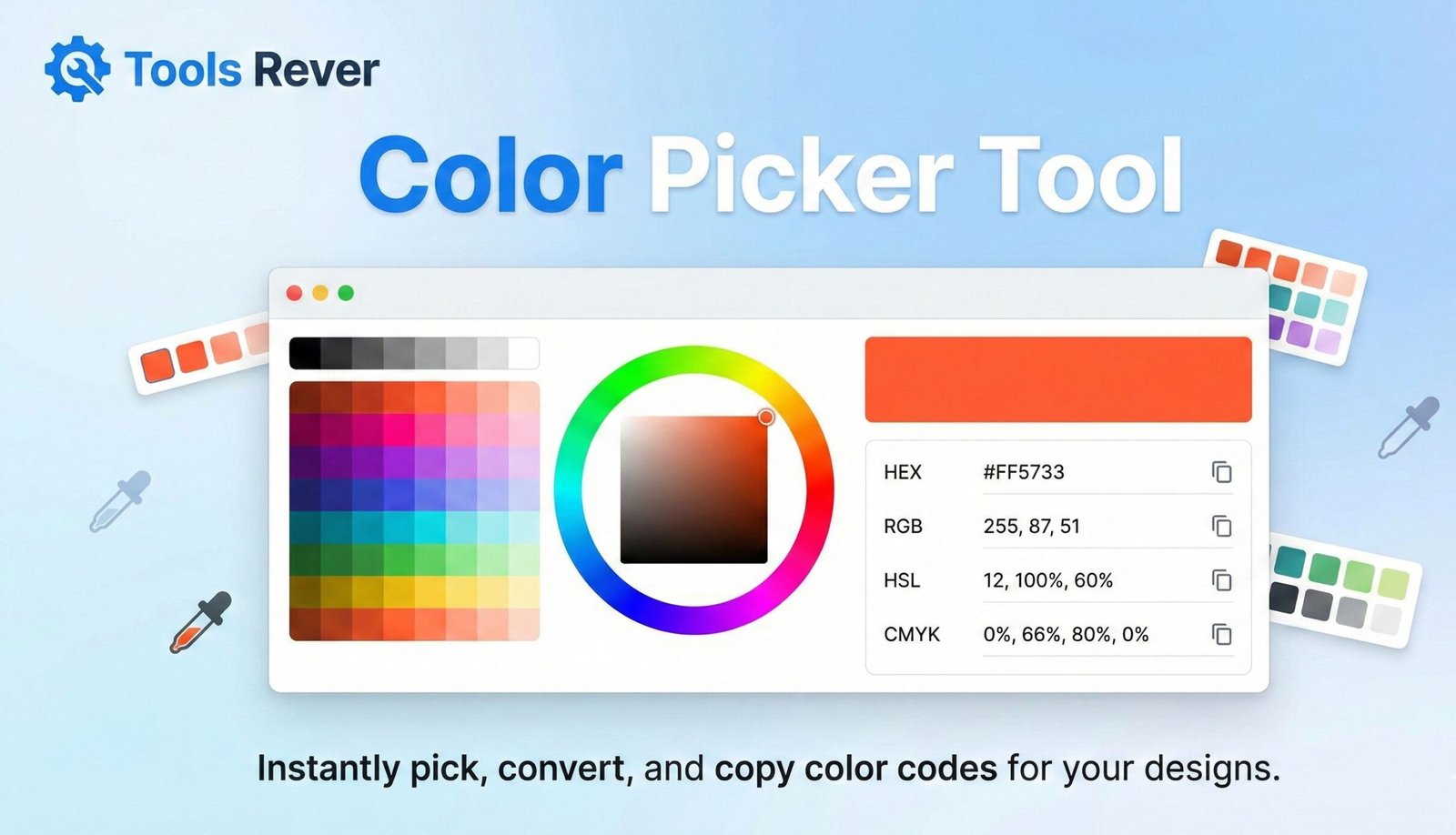
Color Picker Tool
This Color Picker Tool helps you select and manage colors for your web design projects. Choose colors using the sliders or color input, view different color formats (HEX, RGB, HSL), explore color harmonies, and save your favorite colors for future reference.
How to use: Adjust the RGB sliders or use the color input field to select a color. Click on any color value to copy it to your clipboard. Explore complementary and analogous colors, and save your favorites by clicking the “Save Color” button.
Color Picker Tool: Select Perfect Colors for Web & Design
Master your palette with a Color Picker Tool! Learn to grab HEX, RGB, HSL codes, ensure accessibility, and create harmonious color schemes for stunning designs.
Color Picker Tool: Your Ultimate Guide to Perfect Color Selection
Have you ever seen a beautiful color on a website and wondered how to use it in your own design project? Or struggled to maintain perfect color consistency across your website, branding materials, and social media graphics? You are not alone. Selecting and managing colors is a fundamental challenge for designers, developers, and marketers.
A Color Picker Tool is the simple, powerful solution to this problem. This essential digital utility allows you to identify any color you see on your screen and translate it into precise codes like HEX, RGB, and HSL. By using a Color Picker, you can ensure brand consistency, improve your design workflow, and create visually appealing, accessible digital experiences. Let’s dive into how this tool works and why it’s indispensable for your creative and professional work.
What is a Color Picker Tool?
A Color Picker Tool is a digital resource that helps you select and define precise colors for your projects. At its core, it allows you to sample any color from anywhere—be it a website, an image, or a desktop application—and provides you with its exact values in various formats.
Think of it as a digital eyedropper that gives you the formula for any color you point it at. These tools typically offer multiple ways to define a color, such as:
- HEX codes: A six-character code (e.g., #FF5733) widely used in web design and CSS.
- RGB values: Defines colors by their Red, Green, and Blue components (e.g., RGB(255, 87, 51)).
- HSL values: Represents colors by their Hue, Saturation, and Lightness (e.g., HSL(11, 100%, 60%)).
Color pickers can be integrated into design software, used as browser extensions, or accessed as stand-alone online tools, making the selection of perfect colors a seamless and efficient process.
Why is a Color Picker Tool Essential for Your Work?
Color is far more than a visual preference; it shapes identity, drives engagement, and ensures inclusivity. A Color Picker Tool brings structure and precision to this critical element.
1. Precision and Brand Consistency
Every shade matters. A Color Picker Tool lets you select the exact colors, whether matching a client’s logo or a specific brand guideline. Using standardized codes like HEX ensures that your colors remain consistent across all pages and platforms, creating a polished and professional result.
2. Streamlined Workflow and Efficiency
Manually testing and matching colors is a time-consuming process. A Color Picker allows you to instantly grab colors from inspiration sources and preview variations on your own designs. When integrated into your browser or design platform, it dramatically speeds up your workflow and reduces errors.
3. Improved Collaboration
In team projects, consistency is critical. With a Color Picker, you can export and share precise color values with developers and other designers, ensuring the final product perfectly matches the original design vision and eliminates confusion.
4. Accessibility Compliance
Many advanced Color Picker Tools include built-in contrast checkers. These features help you confirm that your text and background color combinations are readable for everyone, including those with visual impairments, ensuring your designs comply with WCAG (Web Content Accessibility Guidelines).
Just as a Color Picker ensures your hues are perfect, our Image Resizer tool ensures your visuals are perfectly sized for any platform.
How to Use a Color Picker Tool: A Step-by-Step Guide
Using a Color Picker is straightforward. Here’s how you can leverage one in your projects, whether you are designing a website or creating a social media graphic.
Step 1: Access the Tool
Open your chosen Color Picker. This could be a built-in tool in software like Adobe Illustrator or Figma, a browser extension, or a free online tool like the one you will find on www.toolsriver.online.
Step 2: Sample Your Color
Use the eyedropper function to click on the color you wish to sample. The tool will immediately display this as your active color.
Step 3: Copy the Color Code
Review the color values provided in HEX, RGB, or HSL format. Copy the code you need—HEX for web development, RGB for digital design, or HSL for easy adjustments.
Step 4: Apply the Color
Paste the color code into your CSS, design software, or brand style guide. For example, using the HEX code #2E86AB in your website’s CSS will apply that specific blue shade consistently across your site.
Understanding Color Formats: HEX, RGB, and HSL
To use a Color Picker Tool effectively, it’s crucial to understand the different color formats it provides. Each serves a unique purpose in the digital world.
HEX (Hexadecimal)
- Structure: A six-digit code prefixed by a hash (#), combining numbers (0-9) and letters (A-F). Example:
#FF5733. - Primary Use: The standard for web design and CSS because it is concise and easily interpreted by browsers.
RGB (Red, Green, Blue)
- Structure: Three numerical values (0-255) representing the intensity of red, green, and blue light. Example:
RGB(255, 87, 51). - Primary Use: The fundamental color model for digital displays, photography, and graphic design software. It’s an additive model where colors are created by combining light.
HSL (Hue, Saturation, Lightness)
- Structure: Three values: Hue (0-360 degrees on the color wheel), Saturation (a percentage of vibrancy), and Lightness (a percentage of white or black). Example:
HSL(11, 100%, 60%). - Primary Use: Considered more intuitive than RGB or HEX because it aligns with how humans perceive color, making it easier to adjust a color’s properties.
Advanced Features of Professional Color Picker Tools
Beyond basic color sampling, professional-grade Color Picker Tools offer features that can elevate your design process.
Color Picker Best Practices for Professional Results
To get the most out of your Color Picker Tool, follow these industry-approved best practices.
1. Build Reusable Color Palettes
Don’t just pick colors ad-hoc. Use your tool to build and save organized color palettes for each project or client. Separate your colors into primary, secondary, and accent categories to maintain visual cohesion and strengthen brand identity.
2. Always Test Color Contrast
Never assume your colors have enough contrast. Always use your Color Picker’s accessibility features or a dedicated tool to check the contrast ratio between text and background colors. This is not just a best practice—it’s a critical aspect of inclusive design and often a legal requirement.
3. Leverage Color Psychology
Color evokes emotion. Use your Color Picker to experiment with shades that reflect the desired brand personality. For instance, blue often conveys trust and calm (perfect for tech or finance), while yellow can evoke energy and optimism.
4. Choose Tools That Integrate with Your Workflow
Select Color Picker Tools that work seamlessly with your preferred software. Whether it’s a built-in picker in Figma or Adobe XD, or a browser extension for grabbing colors from live websites, integration is key to a streamlined workflow.
Common Color Picker Mistakes to Avoid
Even with a great tool, it’s easy to fall into common traps. Here are the key mistakes to avoid for professional results.
Overcomplicating Your Palette
Using too many colors can overwhelm users and dilute your brand message. A good rule of thumb is to stick to 2–3 primary colors with a few complementary shades for balance and emphasis.
Ignoring Accessibility
Choosing color combinations with poor contrast is one of the most common and damaging mistakes. It renders text difficult or impossible for many users to read, harming both user experience and your site’s compliance.
Neglecting Brand Identity
Selecting colors that don’t align with your client’s or your own brand identity can confuse your audience. Always ensure your color palette is consistent with existing logos and marketing materials to build a strong, recognizable brand.
Frequently Asked Questions (FAQs)
What is the most accurate color picker?
What’s the difference between a color picker and a color wheel?
Can a color picker help with website accessibility?
Conclusion: Master Your Palette with the Right Tool
A Color Picker Tool is more than a simple utility; it is the foundation of consistent, professional, and accessible digital design. It empowers you to move from vague color choices to precise, data-driven decisions that enhance brand identity, streamline collaboration, and create better experiences for all users. From the essential function of grabbing HEX codes to the advanced capabilities of palette management and accessibility checking, this tool is indispensable for anyone serious about creating in the digital space.
Stop guessing colors and start mastering them. Ready to ensure perfect color consistency in all your projects? Use our free, powerful Color Picker Tool now to instantly capture, convert, and apply any color with professional precision!
I hope this comprehensive article meets your requirements. I am ready to write the next article for you whenever you need.